
This is a step by step tutorial on how to move an already used Multi Company Manager (MCM) to another computer with a different path or another operating system. The tool rewrites all settings and company settings so the paths in the settings files are correct.
Use it also when an MCM on Linux was first run on Windows and its settings contain Windows paths such as C:/... (symptoms: downloads do not start, files appear in the home folder).
- Download the CompanyMover.zip
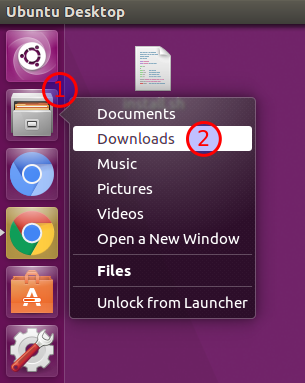
- Open the Download folder.
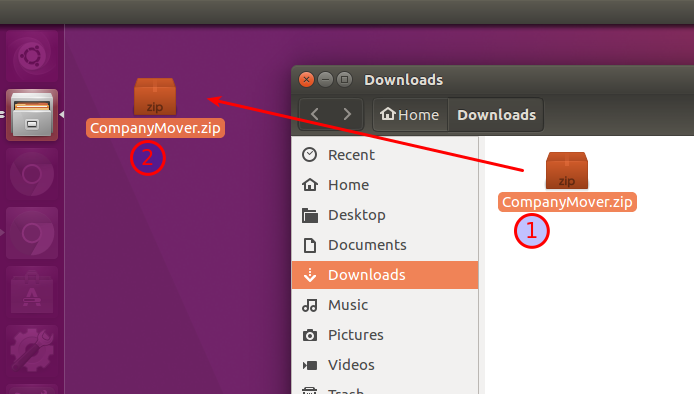
- Move the CompanyMover.zip to the Desktop.
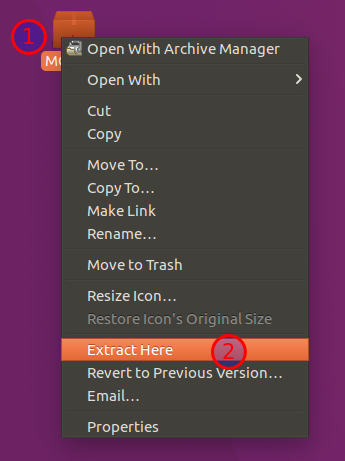
- Right-click the CompanyMover.zip and press the Extract Here button.
- Open the Download folder.
- Start the application
- On Linux only: open the CompanyMover folder, right-click CompanyMover.jar, choose Properties > Permissions and tick Allow executing file as program.
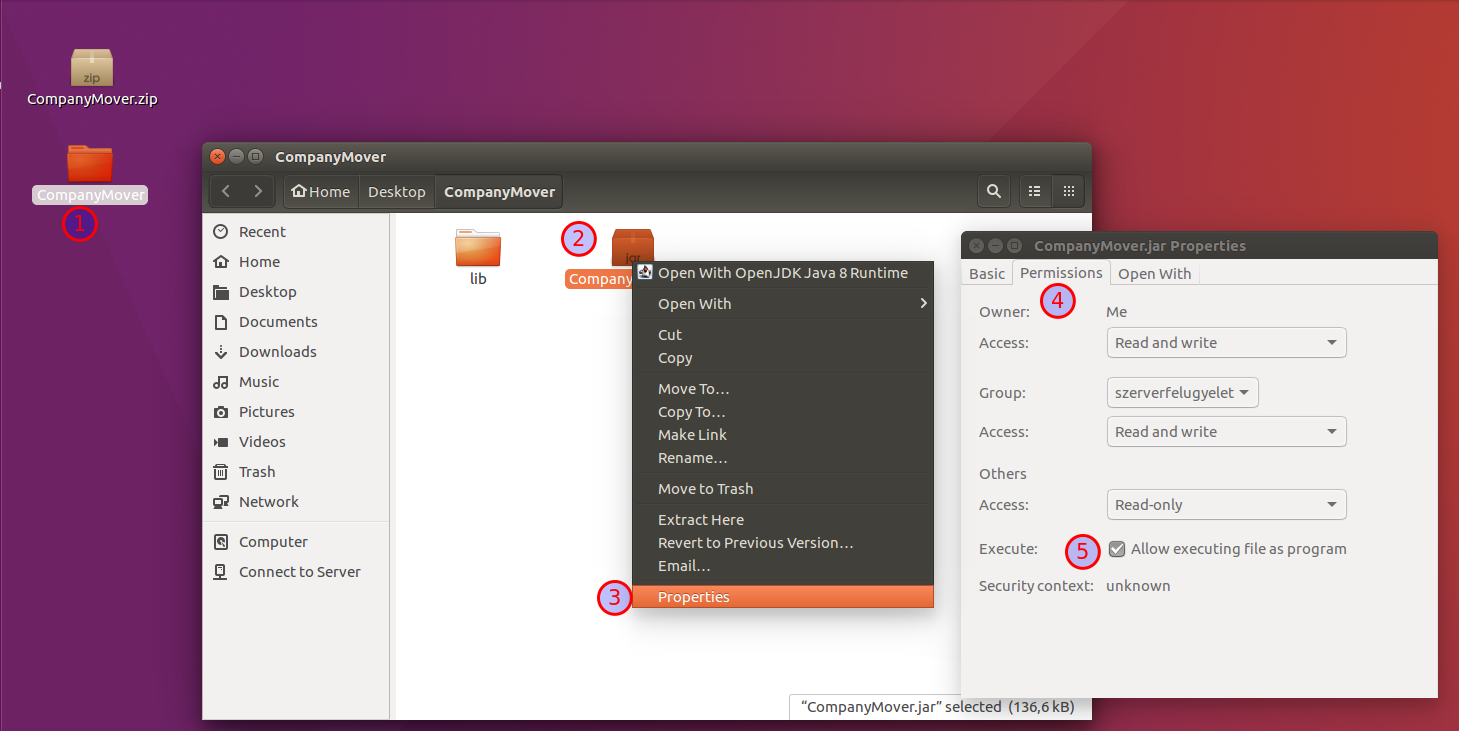
- Double-click CompanyMover.jar to open it. The tool needs Java on the computer.
- On Linux only: open the CompanyMover folder, right-click CompanyMover.jar, choose Properties > Permissions and tick Allow executing file as program.
- Close the MCM where it was running before and never run it again there. Copy the MCM folder to the new computer. Copy the companies folder too, where the downloads were saved (if it was saved to another location than the program folder).
- Application description
- Program Directory: the location of the MCM program that you want to change.
- Source Program Directory: the previous location where the MCM was installed.
- Destination Program Directory: the location of the MCM on the new computer.
- Settings file Comapnies Directory: the companies folder on the previous computer, where the files were saved.
- Search Comapnies Directory: the companies folder where the tool searches for the settings of the companies.
- Destination Companies Directory: the companies folder where the new MCM saves the files.
- Search for setting files in the selected companies directory: searches the settings files in the selected search folder.
- Upload settings files to server on program start: if ticked, the changed settings are uploaded to the server when the program starts.
- Save all setting files: saves all setting files.
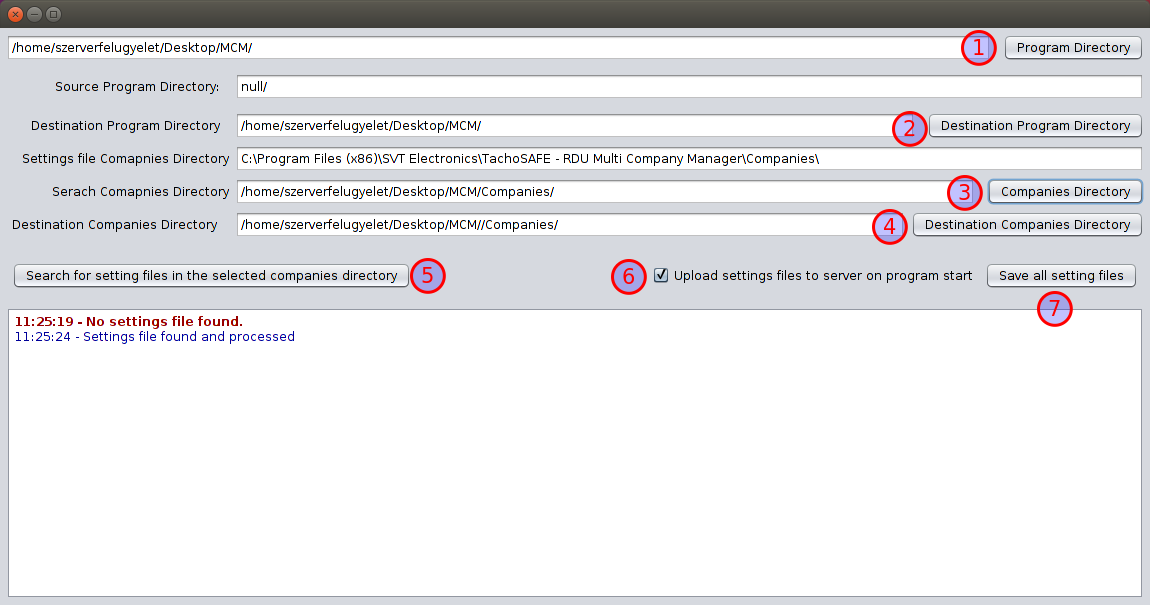
"Comapnies" is spelled like this in the tool. Search the screen for that word.
- Program setup
- Click Program Directory and select the MCM folder you copied to the new computer.
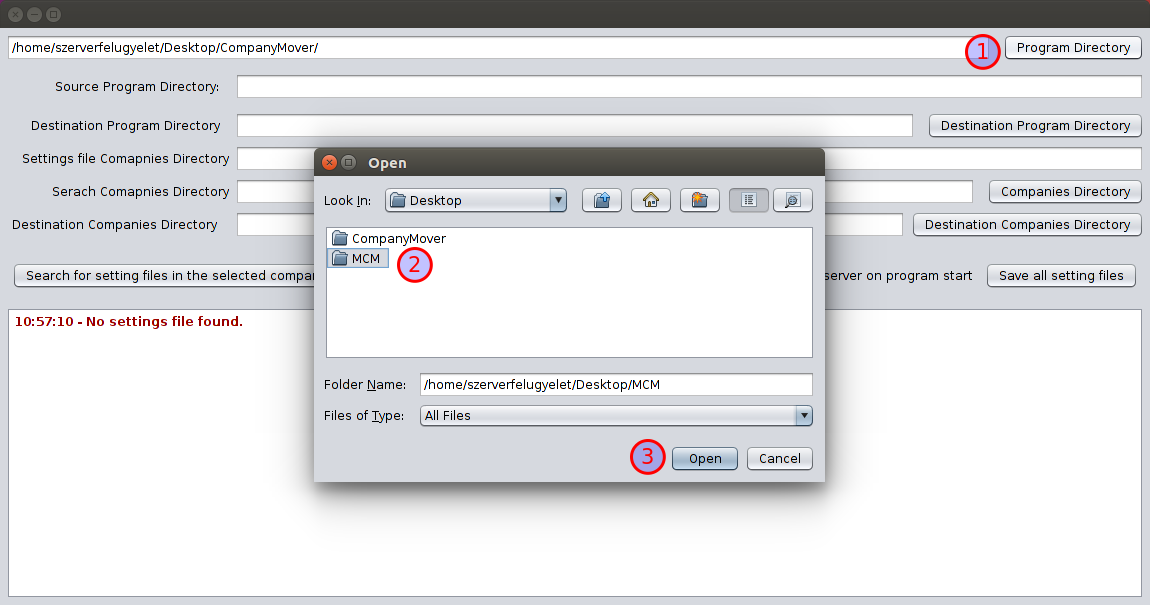
- Set Destination Program Directory to the new program folder. By default it should be set properly.
- Set the companies folder to the folder where the old companies and the downloads are. By default it should be set properly.
- Set Destination Companies Directory to the new companies location. By default it should be set properly.
- Press the search for settings files in the selected companies directory.
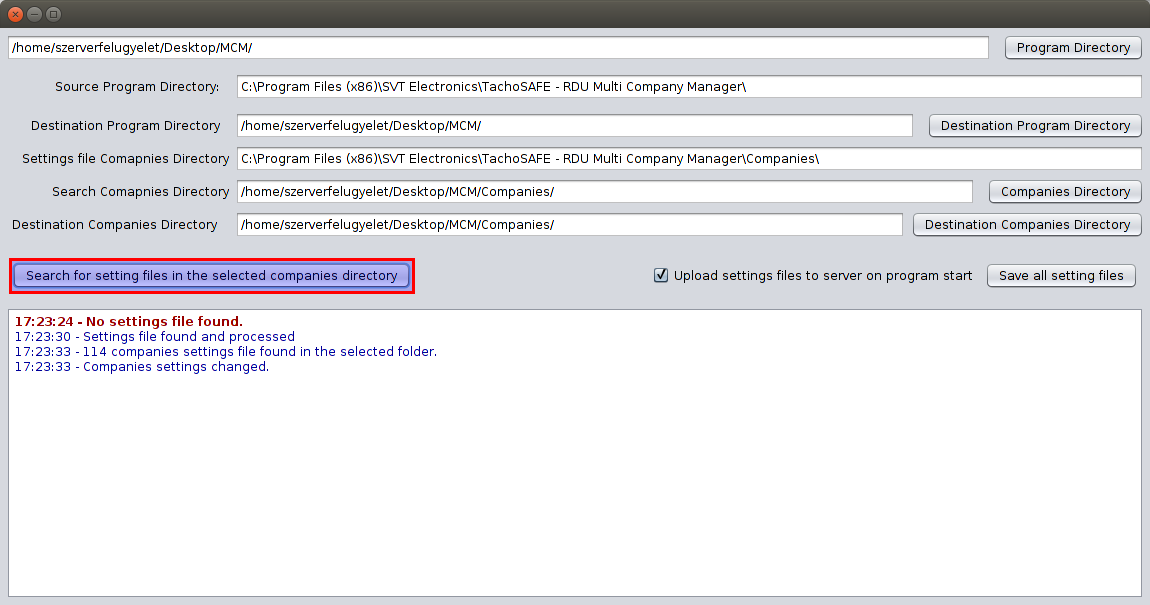
- Tick Upload settings files to server on program start if you want to update the settings saved on the server.
- Press Save all setting files to save the company and the program settings to the selected location.
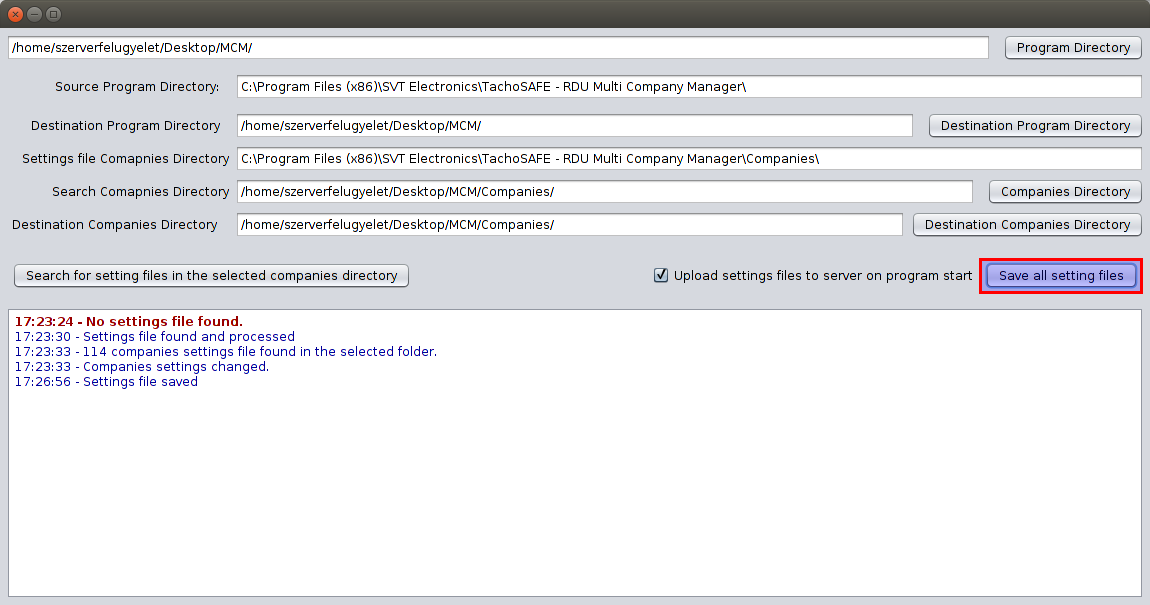
- If everything worked, the log text in the window shows Settings file saved.
- Click Program Directory and select the MCM folder you copied to the new computer.
Contact support
If the downloads still do not start in the new place, open a ticket and send the version of the MCM, the old and the new folder paths and the log files (Contact Support in the tray menu).