
This guide shows how to use the TachoSafe Station as a remote company card reader (TCP card reader) in the Multi Company Manager, version 5.3.0 or newer. The single-company RDU Manager does not have this function.
Two parties are involved: the end client, who owns the device and the company card, and the manager (for example a reseller), who runs the RDU system.
Step 1 – Manager: Register the Company on the RDU Admin Site
The manager must set up the end client's company in the RDU administration system before the client can proceed.
Follow the detailed instructions on how to create a company here:
How to Create a Company
Important: When registering the company, use the end client's email address. The end client will automatically receive their login credentials by email.
Step 2 – Register the TachoSafe Station and Link the Device
The TachoSafe Station must be registered on the TachoSafe WEB platform and linked to the end client's company. This can be done either by the end client or by the manager.
Follow the detailed registration instructions here:
How to register your TachoSafe Station
Once the device is registered and linked to the correct company, the end client should:
- Insert the company card into the card reader slot located on the bottom of the TachoSafe Station device.
- The device will automatically detect the company card and switch to Company Card Authentication mode.
Important: Keep the company card inserted in the device continuously during operation. Only remove it if strictly necessary.
Step 3 - Manager: switch on the TCP card reader
- Open the TachoSafe Multi Company Manager (RDU Manager).
- Go to File → Settings.
- Tick Use TachoSafe Smart Card Reader. The server field TachoSafe Smart Card Reader Server: normally stays at its default value.
- Press OK.

Step 4 - Check the reader
- Navigate to the Smart Card Readers tab in the RDU Manager.
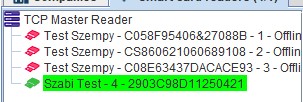
- You should see a TCP Master Reader entry appear in the list.
- Beneath the TCP Master Reader, the end client's company card reader (identified by the card serial number/name) should be listed and shown as online (green).
- The station is now ready to perform remote company card authentication for tachograph downloads.
Note: If the card reader does not appear, verify that:
- The TachoSafe Station is powered on and connected to the internet (LED progress bar lights purple with fading effect = connected to server).
- The company card is properly inserted into the Station.
- Open the Active Connections tab of the Multi Company Manager. The row TCP Card Reader shows Connected, Reconnecting or Disconnected. If it is not Connected, check that the computer can reach the server tacho4safe.com on port 4054 and that a firewall does not block it.
Contact support
If the problem stays, connect the Station to a PC and send the file DOWNLOAD/Log_file.txt to support, together with the terminal ID of the Station and the company name. The TachoSafe Station User Manual describes the LED colours of the device.