
Overview
This guide explains how to configure the TachoSafe Station device as a remote company card reader (TCP Smart Card Reader) for use within the TachoSafe Multi Company Manager. The setup involves two parties: the end client (who owns the device and company card) and the manager/reseller (who administers the RDU system).
Step 1 – Manager: Register the Company on the RDU Admin Site
The manager must set up the end client's company in the RDU administration system before the client can proceed.
Follow the detailed instructions on how to create a company here:
How to Create a Company
Important: When registering the company, use the end client's email address. The end client will automatically receive their login credentials by email.
Step 2 – Register the TachoSafe Station and Link the Device
The TachoSafe Station must be registered on the TachoSafe WEB platform and linked to the end client's company. This can be done either by the end client or by the manager.
Follow the detailed registration instructions here:
How to register your TachoSafe Station
Once the device is registered and linked to the correct company, the end client should:
- Insert the company card into the card reader slot located on the bottom of the TachoSafe Station device.
- The device will automatically detect the company card and switch to Company Card Authentication mode.
Important: Keep the company card inserted in the device continuously during operation. Only remove it if strictly necessary.
Step 3 – Manager: Enable TachoSafe Smart Card Reader in RDU Manager
Once the end client's device and company card are active, the manager enables the TCP Smart Card Reader feature in the RDU Manager software.
- Open the TachoSafe Multi Company Manager (RDU Manager).
- Go to File → Settings.
- Check the checkbox "Use TachoSafe Smart Card Reader".
- Click Save / OK to apply the settings.

Step 4 – Verify the TCP Master Reader and Company Card Appear
After enabling the setting, the Smart Card Readers tab in the RDU Manager should update automatically.
- Navigate to the Smart Card Readers tab in the RDU Manager.
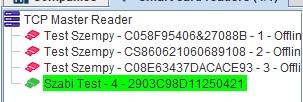
- You should see a TCP Master Reader entry appear in the list.
- Beneath the TCP Master Reader, the end client's company card reader (identified by the card serial number/name) should be listed and shown as online (green).
- The station is now ready to perform remote company card authentication for tachograph downloads.
Note: If the card reader does not appear, verify that:
- The TachoSafe Station is powered on and connected to the internet (LED progress bar lights purple with fading effect = connected to server).
- The company card is properly inserted into the Station.
- The correct server address (
tacho4safe.com:4054) is configured in Settings.
LED Status Reference (Company Card Mode)
| LED Color | Meaning |
|---|---|
| Orange fading | Standby, offline — connecting to server |
| Purple fading | Standby, connected to server — ready |
| Green fading | Remote authentication in progress |
| Red fading + long beep | Error — card not recognized or authentication failed |
Troubleshooting
If issues persist, connect the Station to a PC and send the DOWNLOAD/Log_file.txt to the support team.
For further troubleshooting guidance, please refer to the TachoSafe Station User Manual.