
Queclink terminal setup - connecting to the TachoSafe server
Device-side configuration for @Track Queclink terminals (e.g. GV355CEU / GTQ family), using the Queclink configuration tool.
1. Where to configure
In the Queclink config tool open Network Settings ? QSS (Quick Start Settings). This screen (command AT+GTQSS) sets the APN and the backend server parameters in one place.
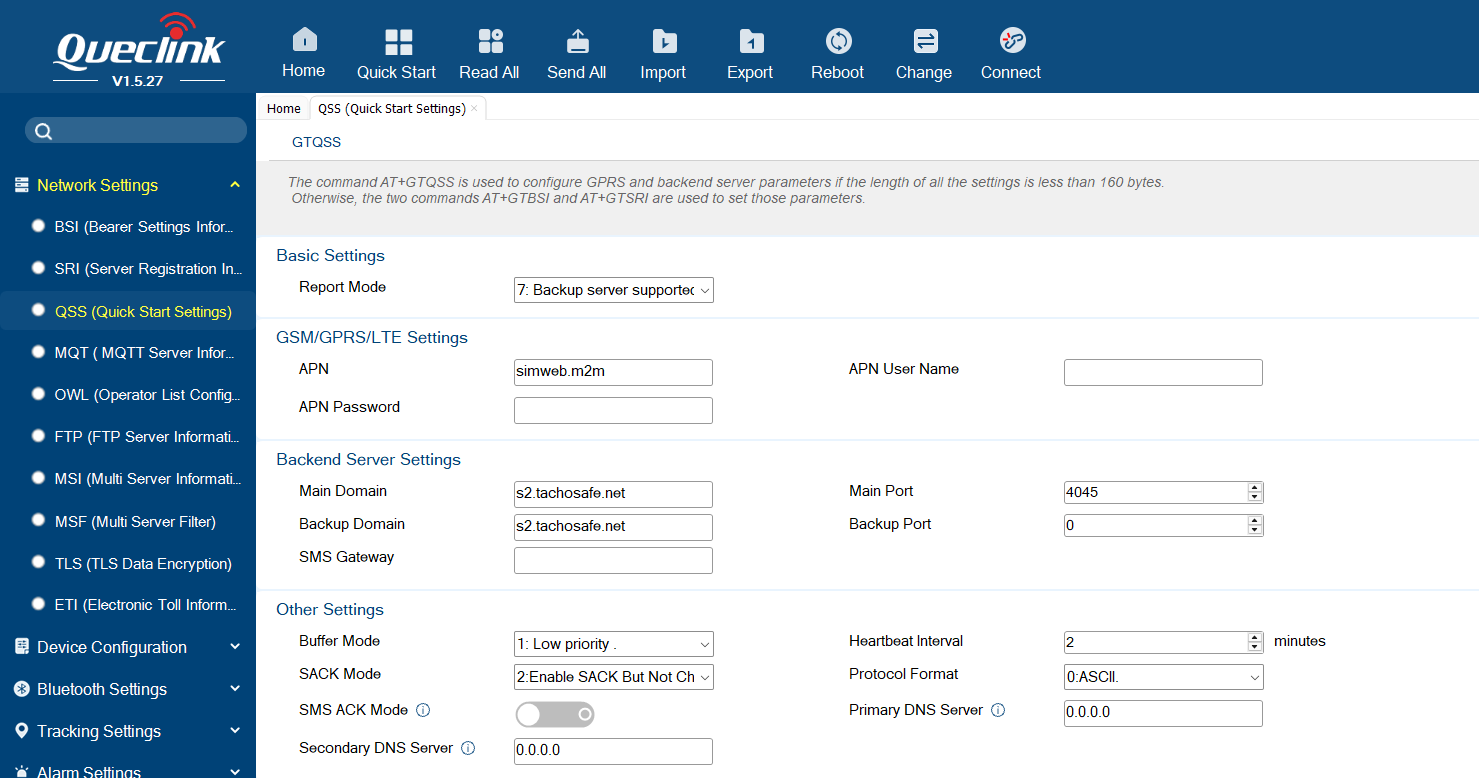 ork Settings ? QSS (Quick Start Settings) menu — insert image here (drag it in from the shared setup folder)
2. Settings to apply
| Field | Value | Notes |
|---|---|---|
| Report Mode | 7 - Backup server supported | A long-connection mode - see §3 |
| APN | simweb.m2m | Use the SIM's APN |
| Main Domain | <TRACKING_SERVER> | Your tracking / telematics server |
| Main Port | <TRACKING_PORT> | Your tracking server port |
| Backup Domain | s2.tachosafe.net | TachoSafe server (tacho download) - must differ from Main, see §3 |
| Backup Port | 4045 | Terminal/device port (not the client port 4040) |
| Buffer Mode | 1 - Low priority | Buffer while offline, re-send on reconnect |
| SACK Mode | 2 - Enable SACK But Not Check | Mandatory - see §4 |
| Protocol Format | 1 - HEX or 0 - ASCII | Both are accepted by the server |
| Heartbeat Interval | 2 minutes | Keeps the long-connection registered |
Equivalent screens for the two protocol formats (identical apart from Protocol Format):
HEX (Protocol Format 1) ? [ Screenshot ] QSS - HEX protoc 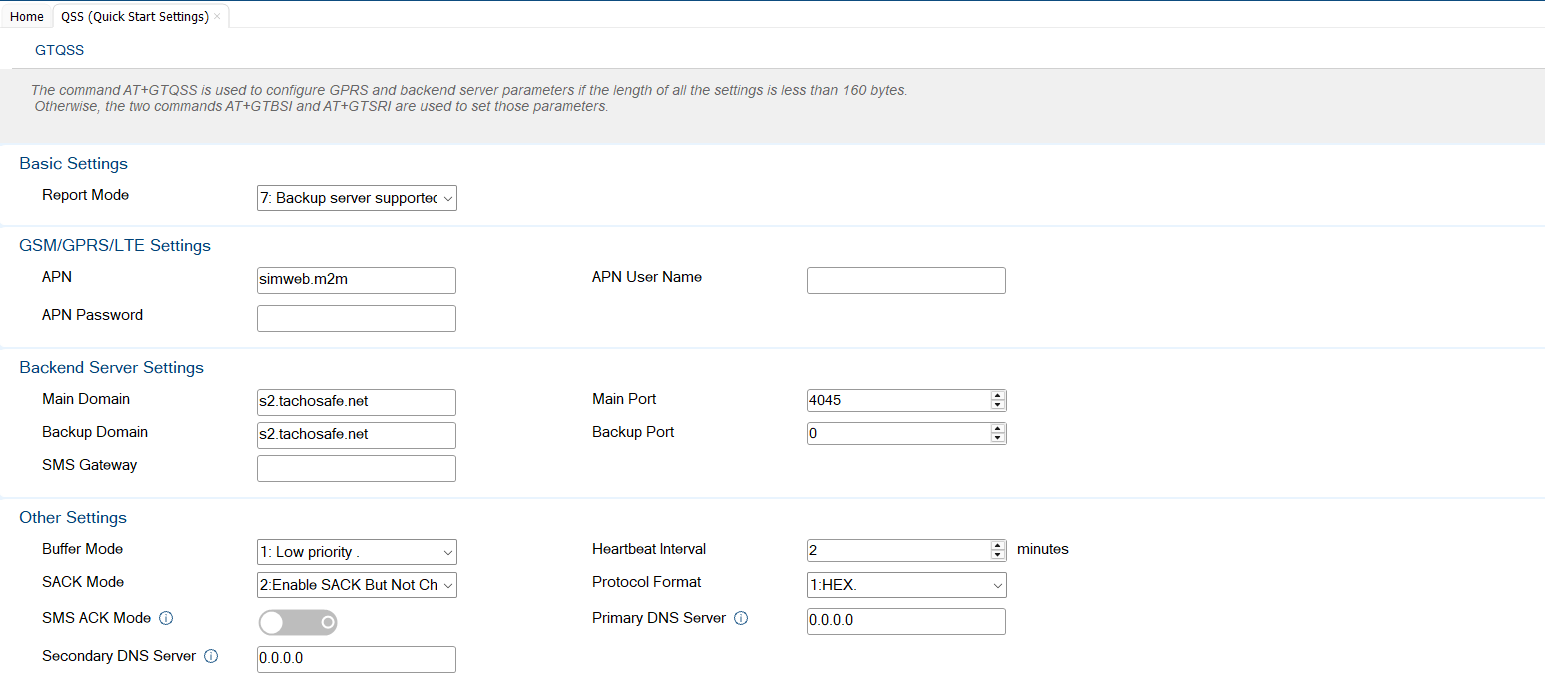 ol format — insert image here (drag it in from the shared setup folder) ol format — insert image here (drag it in from the shared setup folder) | ASCII (Protocol Format 0) ? [ Screenshot ] QSS - ASCII protocol format — insert image here (drag it in from t 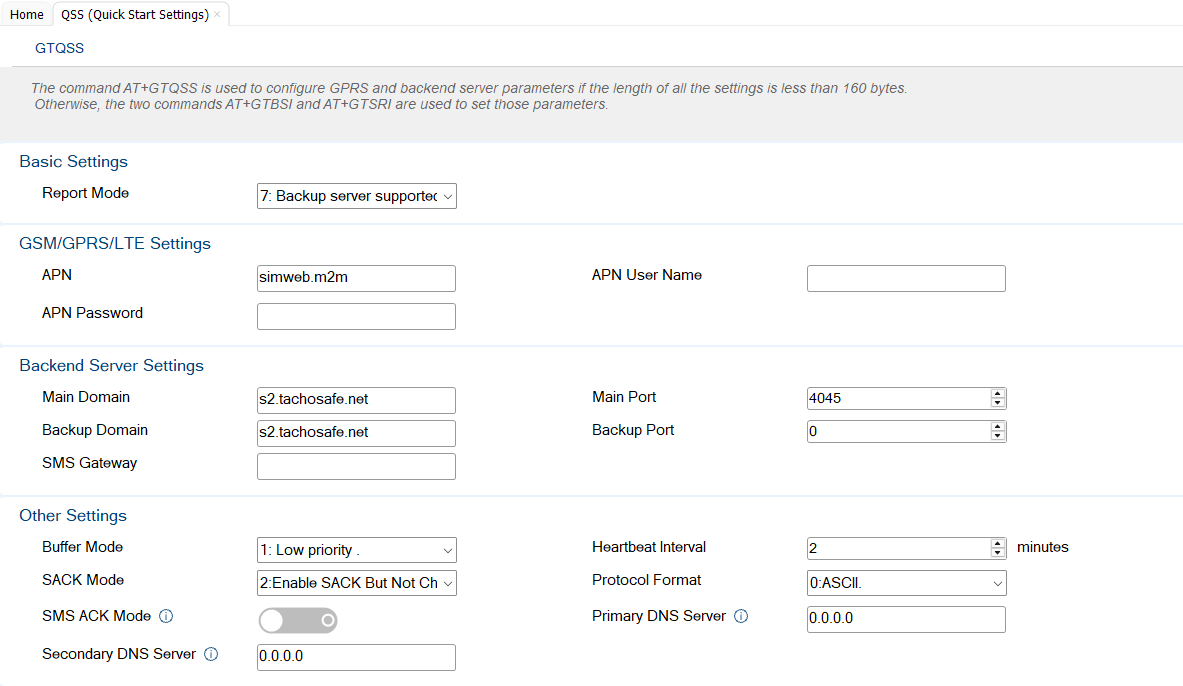 he shared setup folder) he shared setup folder) |
2b. Quick config - copy-paste AT command (SMS / serial)
The whole QSS configuration above can be applied with a single AT+GTQSS command (sent over SMS or serial). ASCII variant (Protocol Format 0):
AT+GTQSS=gv355ceu,simweb.m2m,,,7,,1,<TRACKING_SERVER>,<TRACKING_PORT>,s2.tachosafe.net,4045,,2,2,0,0,0.0.0.0,0.0.0.0,FFFF$
HEX variant (Protocol Format 1 - only that one field changes):
AT+GTQSS=gv355ceu,simweb.m2m,,,7,,1,<TRACKING_SERVER>,<TRACKING_PORT>,s2.tachosafe.net,4045,,2,1,0,0,0.0.0.0,0.0.0.0,FFFF$
Fields: gv355ceu=password · simweb.m2m=APN · APN user/pass empty · 7=Report Mode · reserved · 1=Buffer Mode · <TRACKING_SERVER>/<TRACKING_PORT>=Main (your tracking server) · s2.tachosafe.net/4045=Backup (TachoSafe, tacho download) · SMS gateway empty · 2=Heartbeat(min) · 2=SACK Mode · 0/1=Protocol Format (ASCII/HEX) · 0=SMS ACK · DNS · FFFF=serial. Replace <TRACKING_SERVER>/<TRACKING_PORT> with your telematics server (it must differ from the TachoSafe backup), the APN with the SIM's APN, and the password if the unit uses a non-default one.
2c. Interactive AT command generator
Edit the values below and the AT+GTQSS command updates automatically. Note: this live generator only runs in the standalone HTML file opened in a browser - Freshdesk removes scripts, so in the published article use the fixed commands in §2b.
| Password | APN | ||
| Report Mode | 7 - Backup server supported3 - TCP long-connection1 - TCP short-connection | Buffer Mode | 1 - Low priority0 - Off2 - High priority |
| Main Domain (tracking) | Main Port | ||
| Backup Domain (TachoSafe) | Backup Port | ||
| Heartbeat (min) | SACK Mode | 2 - Enable SACK But Not Check1 - Enable SACK And Check (not supported)0 - Off | |
| Protocol Format | 1 - HEX0 - ASCII | Serial |
AT+GTQSS=...Copy
3. Connection mode & tachograph download
Use a long-connection report mode. Report Mode 7 - "Backup server supported" is recommended: the Main server carries your normal tracking traffic, while the Backup server (s2.tachosafe.net) is the TachoSafe endpoint used for the tachograph (DDD) download.
Any long-connection report mode will work - the server picks up the connection regardless of the mode, so the terminal will connect and report in either case. Mode 7 is preferred because it provides the separate backup-server channel for the download.
? Do not set Main and Backup to the same server (host + port). If both point to the same endpoint, each new connection attempt from one will drop the other, and the terminal ends up disconnecting itself in a loop. The Backup Domain/Port must be a different endpoint from the Main (a different host, or at minimum a different port).
4. SACK Mode - must be "Enable SACK But Not Check" (2)
The server acknowledges every report with a plain +SACK:<CountNumber>$. The SACK Mode dropdown has three options:
0- device does not wait for an acknowledgement.1- Enable SACK And Check: wait for +SACK and verify the serial number matches; resend up to 4× if not. ? Do not use - the terminal's own packet (ACN) validation does not behave as the Queclink documentation states, so the device rejects perfectly valid acknowledgements.2- Enable SACK But Not Check: wait for +SACK without checking the serial number. ? Use this.
Our server replies with the correct +SACK exactly as defined in the @Track protocol documentation. With SACK Mode 1, however, the terminal's own validation of the acknowledgement packet (ACN check) does not work as the Queclink documentation states - the device fails to validate the valid ack, treats each report as un-acknowledged, resends it and store-and-forwards it as buffered +BSP/+BAT/+BAN replays, so the connection appears to loop and never confirms delivery. Select "2: Enable SACK But Not Check" so the device skips its faulty check, accepts the ack and clears each report (and each tacho download chunk) from its buffer.
5. Verify
- Device appears connected on the server for its IMEI.
- Incoming frames log with
crc=OKand each is acknowledged with a single+SACK. - No repeated
+BAT/+BSPbuffered replays of the same report (that symptom = SACK Mode 1 still set). - Position / CAN reports arrive at the configured interval; tacho download runs over the backup-server connection.
Reference: GV355CEU @Track Air Interface Protocol - AT+GTQSS (Quick Start Settings) / AT+GTSRI. Server host and port shown for the TachoSafe production server (s2.tachosafe.net:4045).