
Latest Firmware version: 2.11
Latest Bootloader version: 2.5
To update the Firmware(Fw) and Bootloader(Bl) of Tacho4Safe (T4S) device please follow the bellow steps:
- Initial preparation
- Open Tacho4Safe product page in your web browser.
- Scroll down and find the Update for Windows or Update for MAC and Linux links. Download the appropriate updater application for your computer's operating system.
- Updating under Windows operating system
- Click on Update for Windows to download the the updateTacho4SAFE.exe file.
- Locate the updateTacho4SAFE.exe file in your computer's Downloads folder.
- Connect your T4S device to your PC using a USB cable.
- Copy the updateTacho4SAFE.exe file directly into the root directory of your device as you can see at the bellow picture.
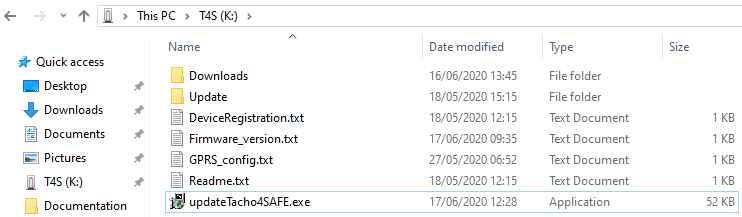
- Run the updateTacho4SAFE.exe from the device in order to check if the firmware on your device is up to date.
- If the firmware is outdated, the setup wizard will download the necessary files to the device's Update folder.
- Once the process is finished, click to Close.
- Verify that the following files are present in the Update folder on your device:
- Tacho4Safe.bin
- Tacho4Safe.crc
- Tacho4Safe_Bootloader.bin
- Tacho4Safe_Booltoader.crc
- Unplug the device from your PC and wait until all light indicators turn off.
If a Bootloader (BL) update is required, the device will flash its indicators and beep.
- Plug the device back in.The device will now update its firmware.
- If a Firmware (FW) update is in progress, the device will flash its indicators and beep.
- Once the update is complete, the device will emit a short beep and appear as a USB mass storage device on your PC.
- If your firmware is already up to date, no files will be downloaded. Simply click to Close.
- If the firmware is outdated, the setup wizard will download the necessary files to the device's Update folder.
- Navigate to the root directory of your device, and find the following files:
- Firmware_vesrion.txt (Contains the current device firmware version)
- version.txt (Contains the latest firmware version available on the server)
- Compare them to see if the versions are the same.
- Updating under Linux/MacOs operating system
- Click on Update MAC and Linux to download the updateTacho4SAFE.sh
- Locate the updateTacho4SAFE.sh file in your computer's Downloads folder.
- Connect your T4S device to your PC using a USB cable.
- Copy the updateTacho4SAFE.sh file directly into the root directory of your device as you can see at the below pictures (first one under Linux, sacond one under Mac OS).
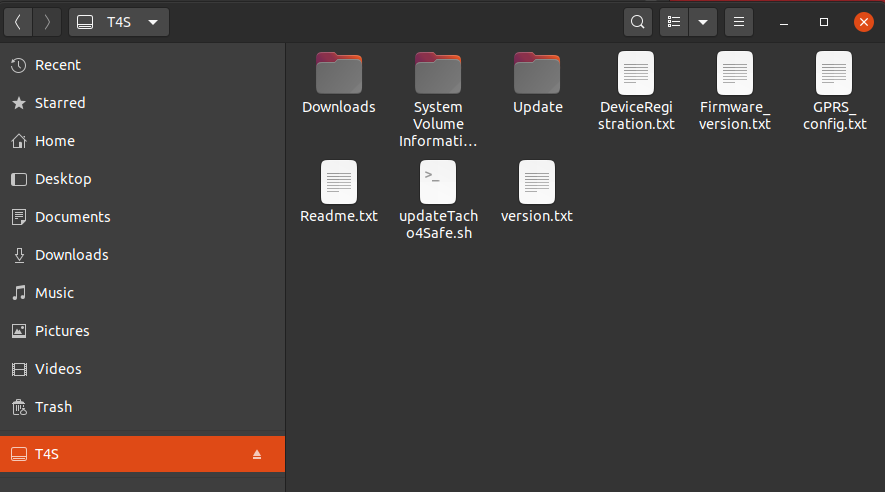
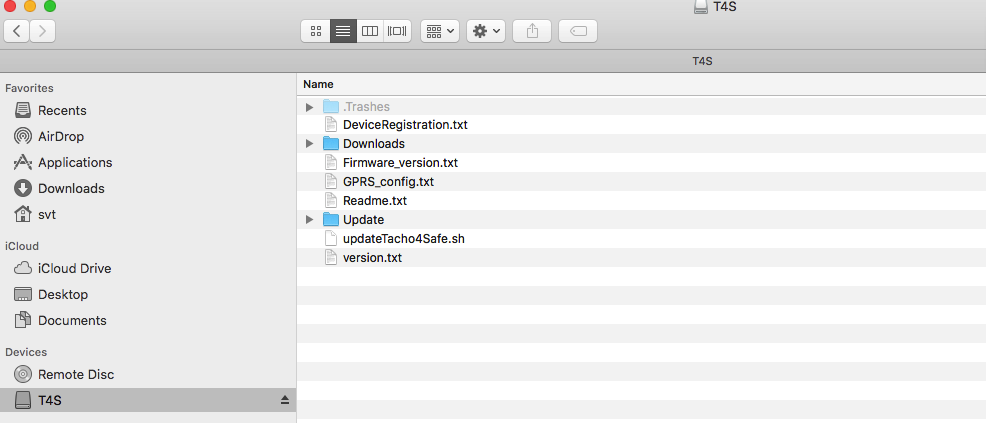
- Open a Terminal and change the directory (
cd) to the Tacho4Safe root directory. - Run the updateTacho4Safe.sh script by typing sh updateTacho4Safe.sh in order to check if the firmware on your device is up to date as you can see at the below pictures (first one under Linux, sacond one under Mac OS) .
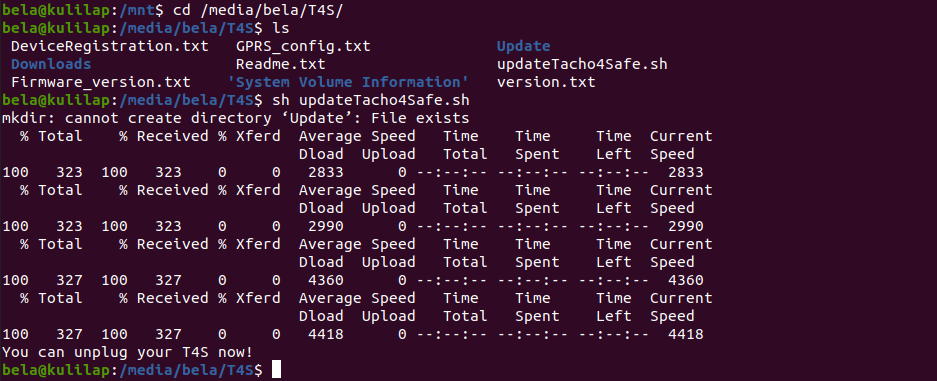
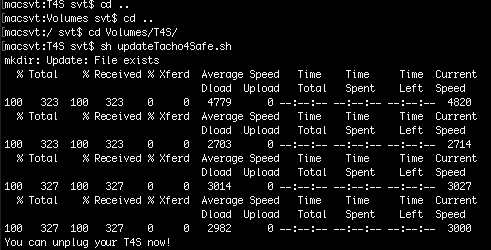
- If the firmware is outdated the script will download the necessary files to the device's Update folder.
- Once the process is finished close the Terminal.
- Verify that the following files are present in the Update folder on your device:
- Tacho4Safe.bin
- Tacho4Safe.crc
- Tacho4Safe_Bootloader.bin
- Tacho4Safe_Booltoader.crc
- Unplug the device from your PC and wait until all light indicators turn off.
If a Bootloader (BL) update is required, the device will flash its indicators and beep.
- Plug the device back in.The device will now update its firmware.
- If a Firmware (FW) update is in progress, the device will flash its indicators and beep.
- Once the update is complete, the device will emit a short beep and appear as a USB mass storage device on your PC.
- If your firmware is already up to date, no files will be downloaded. Simply close the Terminal.
- If the firmware is outdated the script will download the necessary files to the device's Update folder.
- Navigate to the root directory of your device, and find the following files:
- Firmware_vesrion.txt (Contains the current device firmware version)
- version.txt (Contains the latest firmware version available on the server)
- Compare them to see if the versions are the same.